Every Friday at 5 PM, someone on the team sends a “quick update” email that nobody reads, and by Monday, three tasks have fallen through the cracks. I’ve been there, managing projects across sticky notes, shared spreadsheets, and a chat thread that was somehow the official record of everything.
If that sounds familiar, you already know why free project management software exists.
I’ve spent the last several months testing, breaking, and building inside over a dozen free PM tools to put together this list. The free project management software market has exploded in 2026. A study by Mordor Intelligence in 2026 shows the global PM software market is valued at $9.60 billion and growing at a 12.9% CAGR, yet most teams still run projects out of inboxes and spreadsheets. The gap between what’s available and what teams actually use is wide, and it costs real money in missed deadlines and duplicated work.
This list covers 12 tools I’ve actually used, not just signed up for. I’ve noted what each free plan genuinely gives you, what it quietly withholds, and which tool fits which team. Let’s get into it.
What Is Free Project Management Software?
Free project management software is a digital platform that lets teams plan, assign, track, and deliver work in one centralized place at zero cost. It replaces scattered emails, spreadsheets, and status-chasing with shared dashboards, task ownership, and automated reminders.
At its core, good free project management software gives your team:
- Task creation, assignment, and deadline tracking
- Visual project views (Gantt charts, Kanban boards, calendars, list views)
- Team collaboration tools (comments, file sharing, mentions)
- Basic reporting and dashboards for project visibility
- Automated notifications and reminders
The word “free” means different things on different platforms. Some tools offer a genuinely full-featured free plan with no time limit. Others give you a 14-day trial disguised as a free plan. The tools in this list are true free tiers, not trials.
Why Does Your Team Need Free Project Management Software?
The honest answer: because spreadsheets stop working the moment more than one person touches them.
A study by Wellingtone in 2025 shows that 21% of project teams still rely on spreadsheets, and those same teams consistently underperform on delivery metrics. When tasks live in Excel, nobody knows in real time what’s done, what’s overdue, or who owns what. Version conflicts, missed updates, and manual follow-up eat hours every week.
Free project management software solves four specific problems that spreadsheets can’t:
- Task Ownership Clarity: Every task has one owner, one deadline, and one status. No ambiguity.
- Project Deadline Management: Automatic reminders mean managers stop chasing, and team members stop forgetting.
- Team Collaboration Tools: Comments, attachments, and mentions keep conversations inside the task where they belong.
- Project Workflow Optimization: Dependencies ensure work moves in the right order without manual handoffs.
For startups, solopreneurs, small business owners, nonprofits, and freelancers managing client work, the right free tool removes the coordination tax without adding a monthly bill.
12 Best Free Project Management Software Tools In 2026
I tested each of these tools across real project scenarios covering different team sizes, different industries, and different workflows. Here’s a quick comparison before we get into the full reviews:
| Tool | Best For | Pricing | User Rating (G2) |
| ProProfs Project | Simplest Project Management Tool for SMBs With Client Invoicing, Time & Billing | Forever free for small teams. Paid plan starts at $39.97/month | 4.4/5 |
| ClickUp | Highly customizable workflows | Free plan; paid from $7/user/month | 4.7/5 |
| Asana | Strategic project planning | Free (up to 10 users); paid from $10.99/user/month | 4.4/5 |
| monday.com | Visual, color-coded work management | Free (2 seats); paid from $9/seat/month | 4.7/5 |
| Jira | Agile & software development teams | Free (up to 10 users); paid from $8.15/user/month | 4.3/5 |
| Trello | Simple Kanban-style task tracking | Free plan; paid from $5/user/month | 4.4/5 |
| Wrike | Complex cross-departmental workflows | Free plan; paid from $10/user/month | 4.2/5 |
| Zoho Projects | Task automation & Zoho ecosystem users | Free (2 projects); paid from $4/user/month | 4.3/5 |
| Hive | Flexible project hierarchies | Free (up to 5 members); paid from $5/user/month | 4.6/5 |
| Nifty | Project portfolio management | Free (2 projects); paid from $39/month/10 members | 4.7/5 |
| Smartsheet | Spreadsheet-comfort teams | Paid from $7/user/month (no free plan) | 4.4/5 |
| Basecamp | Remote team communication | Paid from $15/user/month | 4.1/5 |
1. ProProfs Project – Simplest Project Management Tool for SMBs With Client Invoicing, Time & Billing
ProProfs Project is the tool I use right now to manage multiple projects without things falling apart, and the reason it leads this list is simple: the free plan doesn’t feel like a stripped-down demo.
The moment I open the dashboard, I can see active projects, upcoming deadlines, and team workload without needing a week of setup. Every core view, including Gantt chart, Kanban board, calendar, and list, is available out of the box, and switching between them takes a single click. Task dependencies mean I can set up sequential workflows where nothing moves forward until the previous step is done, which is something most free tools quietly save for paid tiers.
What stands apart is how complete the experience is without being overwhelming. Time tracking is built directly into the task level, so there’s no separate tool running alongside it. If you’re billing clients, the invoicing feature pulls from your tracked time automatically, a tight integration I haven’t seen done this cleanly at this price point. For teams running multiple projects at once, the portfolio-level view keeps everything visible without opening each project individually.
One more thing that’s changed recently: AI is now part of the free plan too, not gated behind a paywall like it is on some other tools on this list. Describe a project in plain language, and the AI Project Designer builds out the tasks, stages, and assignments for you. There’s also an AI assistant active throughout the project, so you can ask direct questions like “which projects are overrunning” instead of digging through reports yourself.
Pros:
- Gantt charts, Kanban boards, calendar views, and list views are available on the free plan without a paid upgrade
- Built-in time tracking with timesheets and client invoicing in one system
- AI Project Designer and AI assistant included on the free plan, building project structures and flagging risks automatically
- Task dependencies enforce sequential workflows across the full team
- Custom workflows and automation reduce manual follow-up on recurring tasks
- Resource allocation and workload management tools prevent team overload before it happens
Cons:
- No downloadable or on-premise version available
- Dark mode not available in the current interface
User Rating: 4.4/5 (G2)
Pricing:
A free plan is available for growing businesses. Paid plan starts at $39.97/month.
2. ClickUp – Best for Highly Customizable Workflows
ClickUp is the kind of tool that rewards the time you put into setting it up, and I put in a fair amount of time when I first started using it.
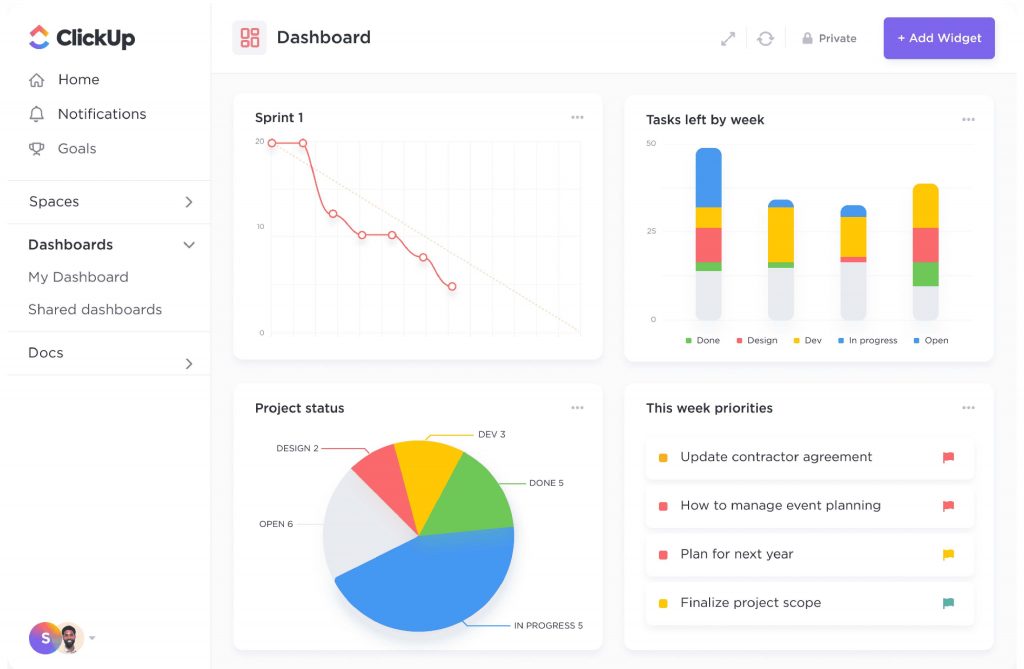
The sheer volume of views, settings, and features was a lot to take in at the start. But once I built out a project space, the hierarchy system of Spaces, Folders, Lists, and Tasks clicked into place. It lets you organize work exactly the way your team thinks, not the way the software dictates.
I added custom fields, set priority levels, created automation rules that moved tasks when statuses changed, and built dashboards showing exactly what I cared about. The Docs feature is a strong addition that keeps process documentation inside the same tool, eliminating the tab switch to Notion or Google Docs.
Pros:
- Flexible hierarchy system (Spaces, Folders, Lists, Tasks) adapts to any team structure or project type
- Native Docs, Goals, and Whiteboards reduce reliance on external tools
- Automation builder handles repetitive actions without manual triggers
- Multiple views, including Gantt, Kanban, list, calendar, and timeline, are available in one workspace
Cons:
- The interface becomes overwhelming for first-time or non-technical users
- Advanced automations and reporting are locked behind paid tiers
User Rating: 4.7/5 (G2)
Pricing:
Free plan available. Paid plans start at $7/user/month.
3. Asana – Best Free Project Management Software for Strategic Project Planning
Walking into Asana the first time felt noticeably lighter than most PM tools I had tested before it. The interface is uncluttered, the language is plain, and within about 20 minutes, I had a full project set up with tasks, assignees, due dates, and a timeline view.
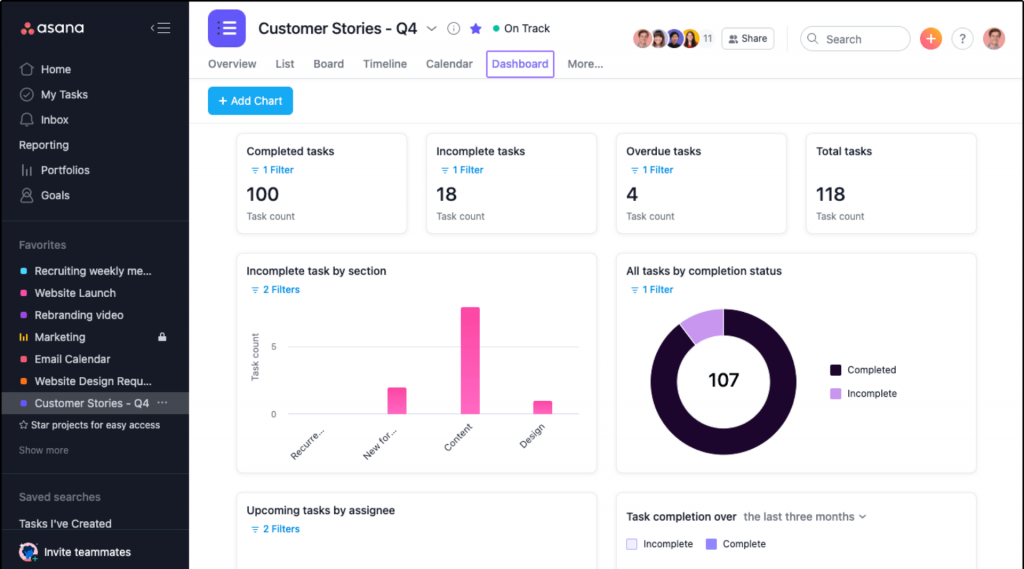
The timeline view is presentation-ready, something I appreciated when sharing project status with stakeholders who don’t want to dig into task lists. Automation rules are also surprisingly powerful for a tool that feels this clean: set a trigger, define an action, done.
The ceiling shows up at the free plan level. Task dependencies and project dashboards, two features you will eventually need, are locked behind paid plans. For simple projects with teams under 10, the free tier is solid. For anything more complex, the pressure to upgrade arrives quickly.
Pros:
- Portfolio and workload views for high-level oversight across multiple projects
- Automation rules reduce manual task handoffs between team members
- Strong integration library including Slack, Google Drive, and Microsoft Teams
- Visual timeline view is polished and ready for stakeholder presentations
Cons:
- Task dependencies and project dashboards are locked behind paid plans
- Limited built-in time tracking compared to alternatives on this list
User Rating: 4.4/5 (G2)
Pricing:
Free plan available (up to 10 users). Paid plans start at $10.99/user/month.
4. monday.com – Best for Visual, Color-Coded Work Management
The first thing that hit me about monday.com was the visual design. Everything is bright, color-coded, and organized into boards that make it immediately clear what’s in progress, overdue, or waiting on someone.
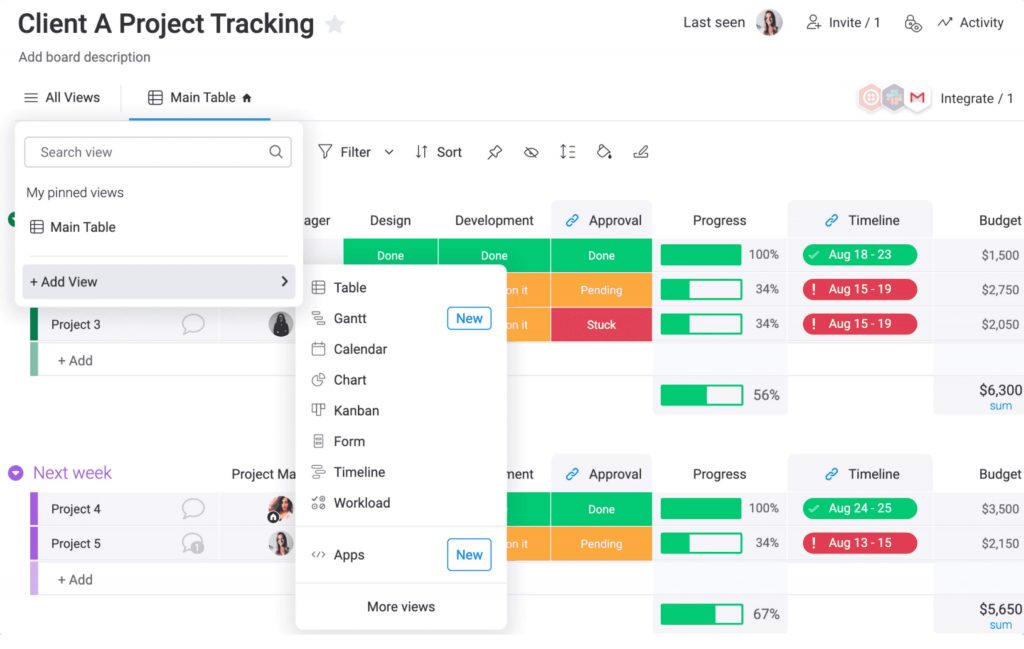
For managers who want a fast pulse-check on team health without navigating menus, this visual-first approach genuinely works. The automation capabilities are robust. I built a multi-step workflow that reassigned tasks, sent notifications, and updated statuses from a single trigger. The dashboard builder pulls data from multiple boards into one executive view, which is useful when managing work across departments.
The trade-off: the free plan is capped at 2 seats, which makes it a personal tool at best, not a team tool. Paid plans also require a minimum of 3 seats, which makes pricing math awkward for very small teams.
Pros:
- Automation connects triggers and actions across multiple boards seamlessly
- Customizable column types, including formulas, dependencies, and timelines for data-rich planning
- Portfolio dashboards provide executive-level visibility across all active projects
- Strong integrations with Salesforce, HubSpot, Jira, and other business tools
Cons:
- Free plan is limited to 2 seats, making it unusable as a team tool
- Advanced automation and time tracking are locked behind higher pricing tiers
User Rating: 4.7/5 (G2)
Pricing:
Free plan (up to 2 seats). Paid plans start at $9/seat/month.
5. Jira – Best Free Project Management Software for Agile and Software Development Teams
Jira’s reputation in software development circles is well-earned, and working through its sprint planning, backlog management, and Scrum board setup confirmed why.
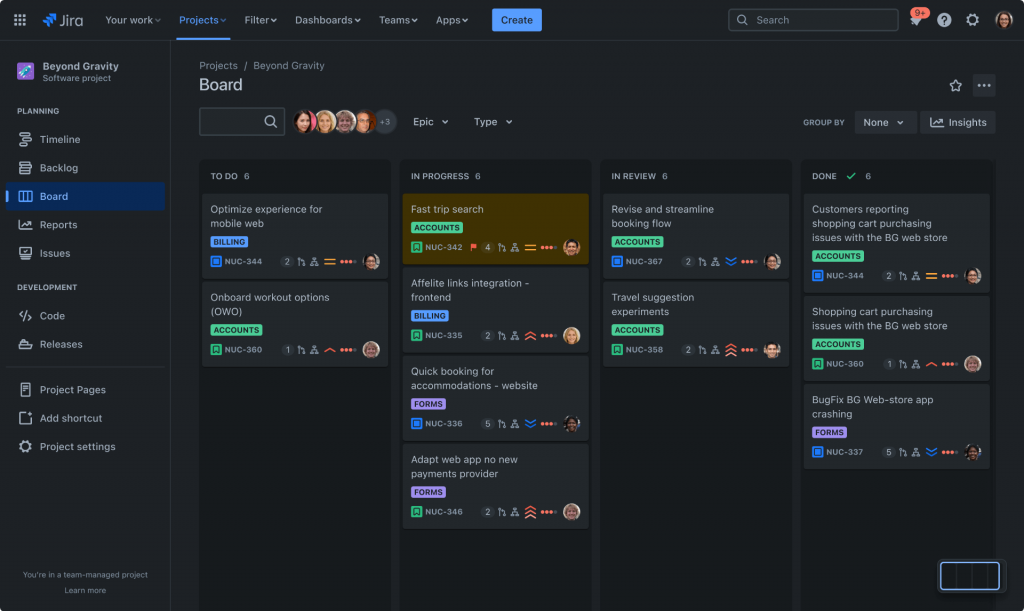
The depth inside Jira’s free plan is impressive, covering issue types, story points, custom workflows for different development stages, velocity charts, and Confluence integration for documentation. For teams running Agile sprints and managing technical backlogs, there is no better free starting point.
Where Jira gets difficult is everywhere outside that context. Non-technical users find the interface dense and the learning curve steep. Small organizations without a dedicated Scrum master often end up paying for complexity they don’t actually need.
Pros:
- Best-in-class sprint planning and backlog management for Agile teams
- Highly customizable workflows, issue types, and permission structures
- Confluence integration connects project execution directly to documentation
- Advanced reporting, including velocity charts and burndown charts
Cons:
- Steep learning curve for non-technical users and teams new to Agile
- Can become slow and clunky for large-scale projects with many integrations
User Rating: 4.3/5 (G2)
Pricing:
Free (up to 10 users). Paid plans start at $8.15/user/month.
6. Trello – Best for Simple Kanban-Based Task Tracking
Trello was one of the first project management tools I used years ago, and coming back to it as an experienced PM reminded me why it resonated. It is genuinely the easiest tool to get a team into in under an hour.
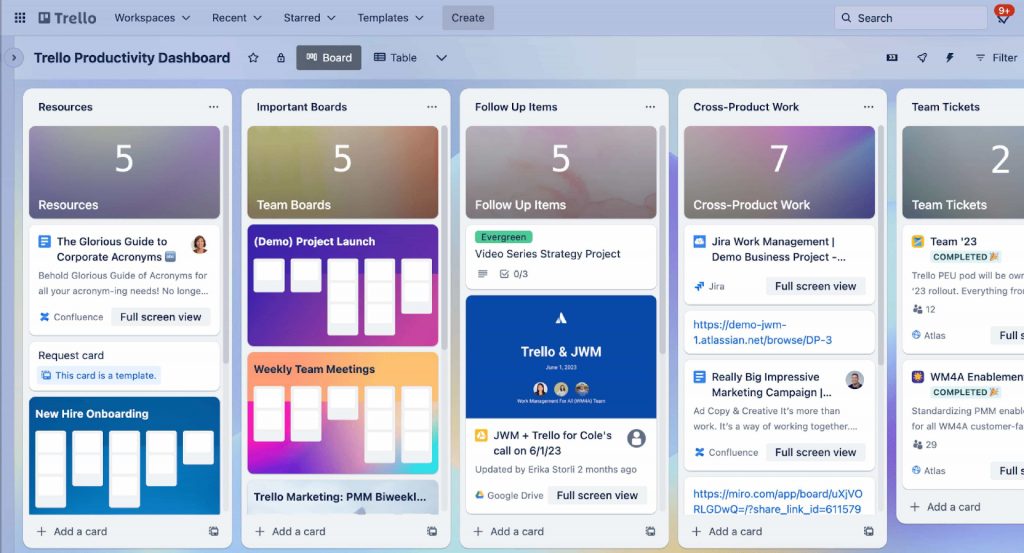
The card-and-board interface is instantly familiar, a digital sticky-note board by design. For small teams, personal projects, or teams brand new to structured project management, the near-zero learning curve is a real asset. Power-Ups extend Trello’s functionality in useful ways: calendar views, Butler automation, and integrations with Slack and Google Drive all add value.
The limitation arrives quickly when projects get complex. There are no native Gantt charts, no time tracking, and limited reporting, even on paid plans. Trello is a starting point, not a scaling tool.
Pros:
- Instantly intuitive card-based interface requires almost no onboarding time
- Butler automation handles repetitive actions based on configurable triggers
- Strong integration library through Power-Ups for extended functionality
- Flexible board structure accommodates personal and small team workflows
Cons:
- No native Gantt chart, time tracking, or advanced reporting features
- Power-ups for advanced features require a paid plan upgrade
User Rating: 4.4/5 (G2)
Pricing:
Free plan available. Paid plans start at $5/user/month.
7. Wrike – Best Free Project Management Software for Complex, Cross-Departmental Workflows
Wrike was the first tool I turned to when a project involved multiple departments with very different working styles, and it handled both without asking me to compromise either team’s process.
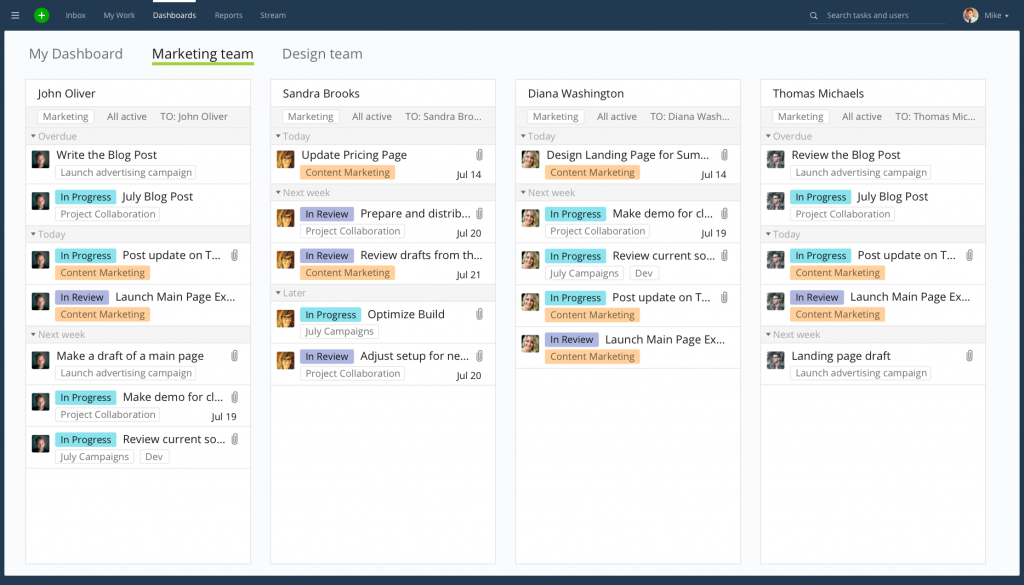
The custom workflow builder lets you create distinct processes for different groups. The marketing team’s approval workflow looked completely different from the engineering team’s sprint structure, and Wrike held both in one workspace cleanly. The proofing and approval features are a standout for creative teams, where feedback loops that previously required three email threads now happen inside the task itself.
Real-time Gantt charts update across all views simultaneously. Resource management and workload views help spot who’s overloaded before it becomes a delivery problem. The caveat: Wrike’s depth is also its barrier, and teams without a dedicated PM admin will find the initial setup challenging.
Pros:
- Custom workflow builder supports complex, multi-team approval processes
- Real-time Gantt charts with full dependency and critical path support
- Built-in proofing and approval tools for creative and content teams
- Workload views identify resource bottlenecks before they affect delivery
Cons:
- Gantt charts and time tracking are locked behind paid tiers
- Portfolio management features limited to higher-priced plans
User Rating: 4.2/5 (G2)
Pricing:
Free plan available. Paid plans start at $10/user/month.
8. Zoho Projects – Best for Teams Already Using the Zoho Ecosystem
Zoho Projects made a strong impression when I tested it alongside Zoho CRM and Zoho Books in an integrated workflow, and the native connections between invoicing, CRM data, and project tasks are genuinely useful.
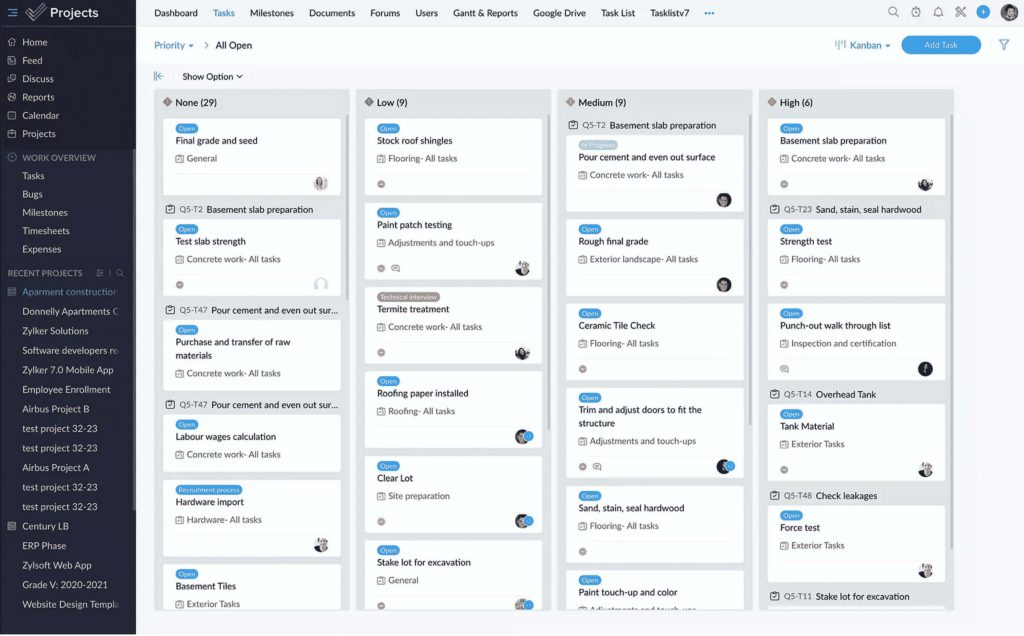
Information didn’t need to be re-entered across tools, which saves meaningful time in any client services context. The task automation features are solid: define triggers and let the platform handle the repetitive parts of your project workflow automatically. The issue tracking module connects bug reports and support requests directly to project tasks, useful for IT or software teams managing delivery and support simultaneously.
The main limitation is the free plan’s cap at 2 projects. Teams with more than two active workstreams will hit that ceiling fast.
Pros:
- Deep native integration with the full Zoho suite, including CRM, Books, Analytics, and Invoice
- Issue tracking connects bugs and support tickets directly to project tasks
- Resource utilization charts balance workload distribution across the team
- Customizable project templates reduce setup time for recurring project types
Cons:
- Gantt charts are not available on the free plan
- Best value is only realized when used within the broader Zoho ecosystem
User Rating: 4.3/5 (G2)
Pricing:
Free (up to 2 projects). Paid plans start at $4/user/month.
9. Hive – Best for Flexible Project Hierarchies and Native Team Communication
Hive caught my attention immediately for how well it integrated chat and task management in one interface, which meant my team stopped bouncing between Slack and a separate PM tool.
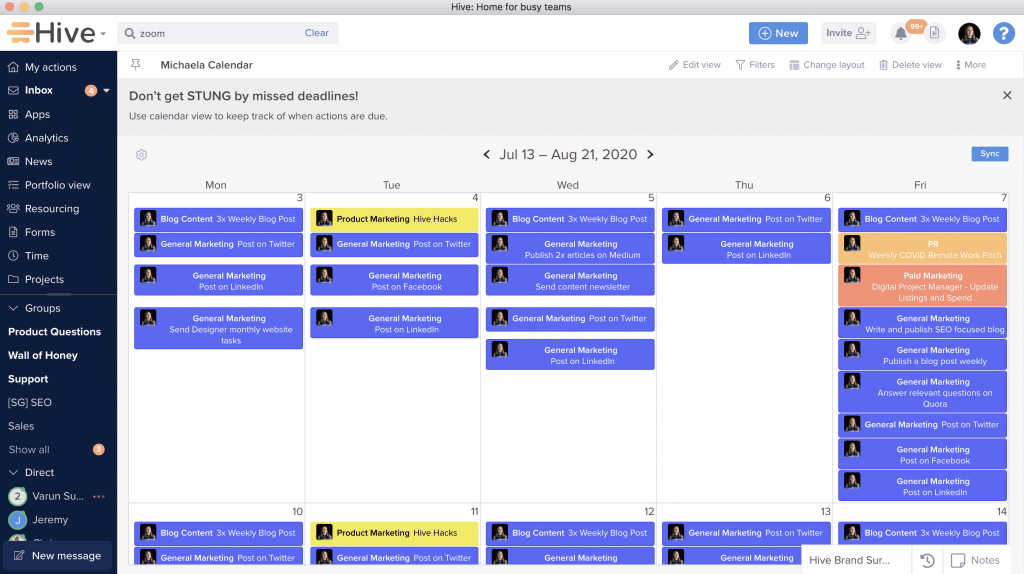
Native in-app chat keeps conversations tied directly to the project context, reducing the constant app-switching that kills focus time. The workflow automation is well-designed: triggers and actions are logical enough that non-technical team members can configure them without IT help.
Portfolio views give managers a high-level overview of all active projects in one screen, useful when overseeing multiple simultaneous initiatives. The main constraint is the free plan, where five members and only 2 project dashboards makes it genuinely limited for anything beyond a very small team.
Pros:
- Native in-app chat reduces reliance on external messaging tools for project communication
- Workflow automation with triggers reduces repetitive manual tasks throughout the project lifecycle
- Time tracking with billing and productivity reporting, built directly into the platform
- Multiple project views, including Kanban, Gantt, calendar, and table, are available in one workspace
Cons:
- Chat functionality has reported display reliability issues from some users
- Advanced AI features and analytics are gated behind paid plans
User Rating: 4.6/5 (G2)
Pricing:
Free (up to 5 members). Paid plans start at $5/user/month.
10. Nifty – Best Free Project Management Software for Project Portfolio Management
Nifty’s visual design was the first thing I noticed. It is noticeably more polished than the average project management interface, and the roadmap feature is where the tool truly earns its spot on this list.
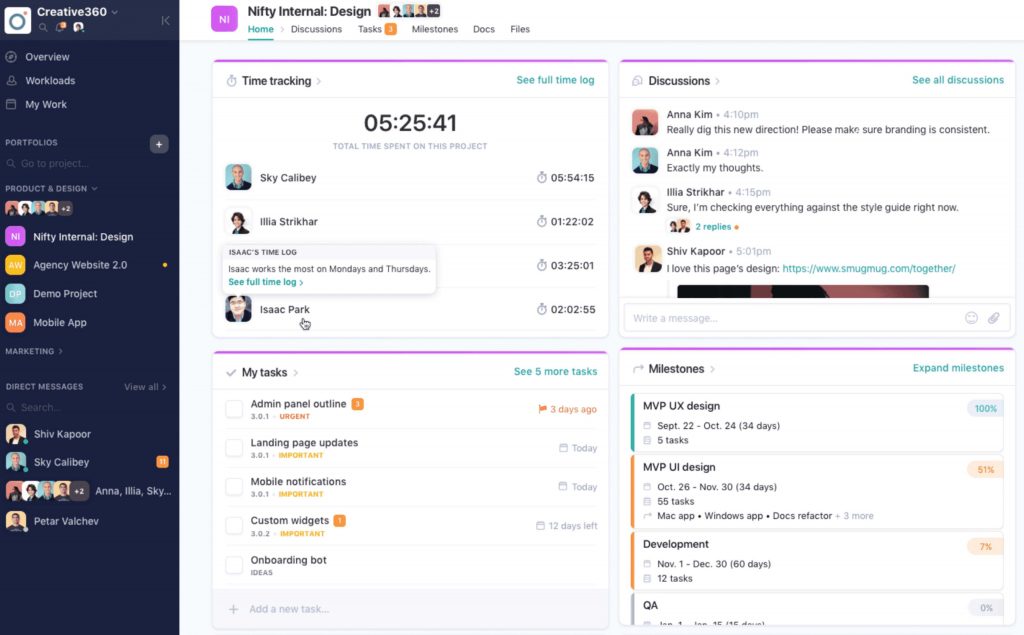
The milestone-based roadmap lets you visualize project progress across a timeline, connect related tasks, and communicate status in a format that works for stakeholders who don’t want to dig into individual task lists. I found this particularly useful for leadership check-ins where I needed to show progress without walking through every subtask.
Threaded discussions, file sharing, and milestone tracking all work well together. That said, the free plan is restricted to 2 active projects with only 100MB of storage, a tight cap for any team managing more than two client workstreams.
Pros:
- Milestone-based roadmap view makes progress communication easy for non-PM stakeholders
- Threaded discussions keep conversations organized within the project context
- Time tracking and reporting are built in for project budgeting and billing purposes
- Cross-project portfolio views provide holistic workload oversight for managers
Cons:
- Free plan limited to 2 projects and only 100MB of storage
- Reporting depth is limited on the free tier
User Rating: 4.7/5 (G2)
Pricing:
Free (up to 2 projects). Paid plans start at $39/month for 10 members.
11. Smartsheet – Best for Spreadsheet-Comfort Teams Moving to Structured Project Management
Smartsheet occupies a specific niche I saw come up repeatedly in real buyer conversations: teams fluent in spreadsheets that resist traditional PM tool interfaces and want the familiar grid layout with real project management power on top.
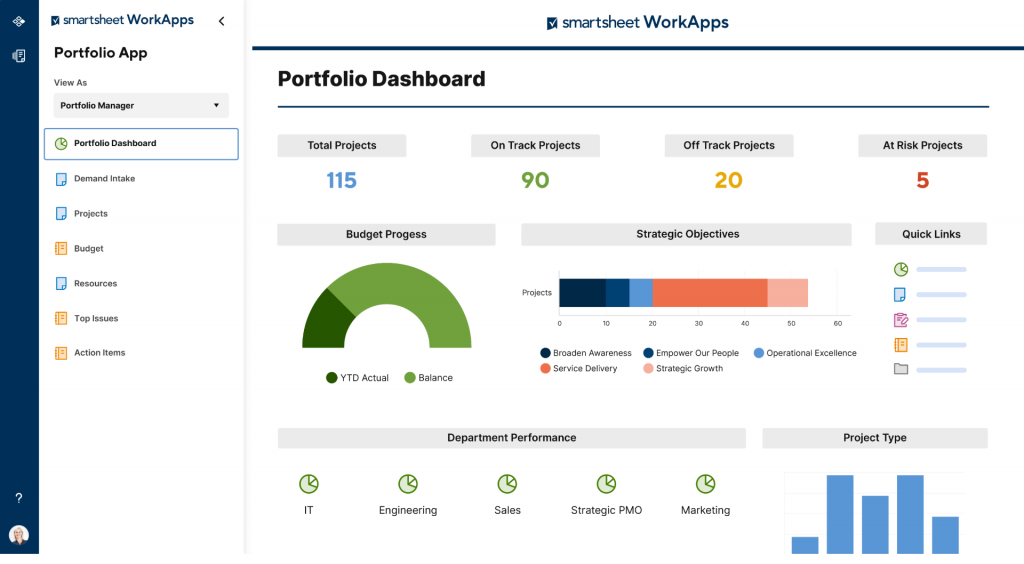
Smartsheet delivers exactly that, a familiar grid-based layout with Gantt chart views, automation, resource management, and real-time collaboration layered on top.
The transition from Excel to Smartsheet is meaningfully easier than migrating to a board-based tool like Trello or Asana, because the interface already feels like home. The adoption barrier drops. The main limitation is a hard one: Smartsheet has no free plan. You pay from day one.
Pros:
- Spreadsheet-style grid interface lowers the adoption barrier for Excel-heavy teams
- Powerful automation with conditional formatting and multi-step workflow rules
- Strong integration library including Salesforce, Microsoft 365, and Slack
- Gantt charts and resource management available on all paid tiers
Cons:
- No free plan available; a paid subscription is required from day one
- Visual design feels less modern compared to other tools on this list
User Rating: 4.4/5 (G2)
Pricing:
Paid plans start at $7/user/month (no free plan available).
12. Basecamp – Best for Remote Teams That Prioritize Team Communication Over Complex Workflows
Basecamp takes a fundamentally different approach from every other tool on this list, and I mean that as an observation, not a criticism.
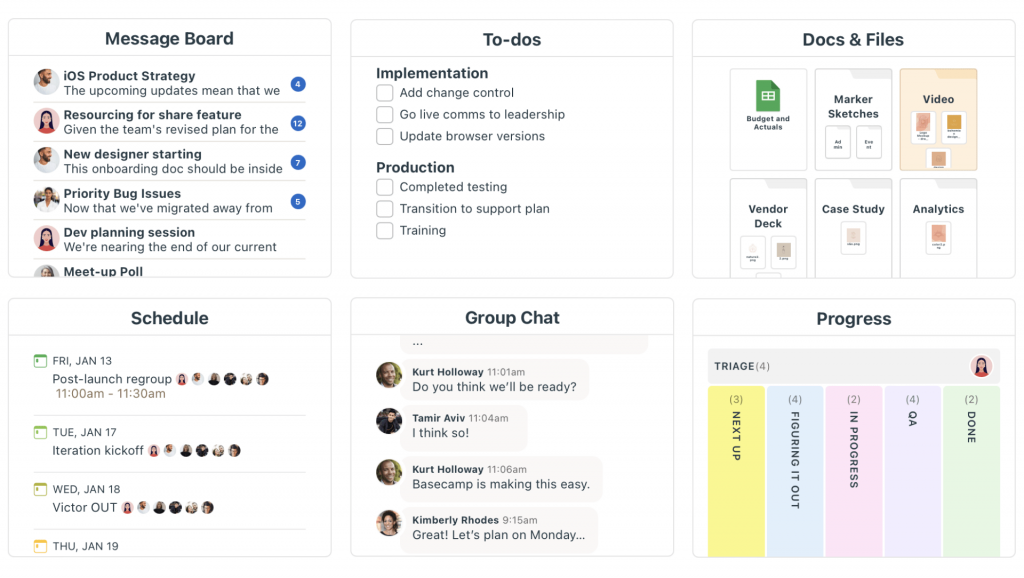
Instead of organizing around tasks and timelines as the primary unit of work, Basecamp organizes everything around projects and conversations. Each project gets a message board, to-do list, file storage, schedule, and group chat in one tidy package. When I used it for a fully remote team scenario, the simplicity genuinely reduced coordination friction, with fewer decisions about where to put things and fewer places to look.
Where Basecamp falls short is in feature depth. There are no Gantt charts, no time tracking, no workload views, and no task dependencies. If your project management challenge involves multi-phase delivery or sequential task dependencies, Basecamp will hit its ceiling quickly.
Pros:
- All communication, files, tasks, and schedules are organized per project in one space
- Flat pricing model is predictable and cost-effective for larger teams
- Built-in message board reduces email back-and-forth for project communication
- Automatic check-in prompts encourage async status updates without extra meetings
Cons:
- No Gantt charts, time tracking, or resource management features at all
- No free plan; paid plans start at $15/user/month
User Rating: 4.1/5 (G2)
Pricing:
Paid plans start at $15/user/month (no free plan available).
How Did I Evaluate the Best Free Project Management Tools?
Every tool in this list was selected through hands-on testing and a structured evaluation framework, not based on marketing pages or vendor relationships. Here is exactly what I looked at:
- User Reviews and Ratings: I cross-referenced ratings and verified reviews from G2, Capterra, and GetApp, focusing on patterns across large review volumes rather than individual opinions.
- Essential Features and Functionality: I evaluated each tool against a consistent baseline covering task creation and subtasks, task dependencies, multiple project views (Gantt, Kanban, list, calendar), time tracking, and reporting and analytics. A study by Capterra in 2025 shows that 65% of PM software users rely on reports and analytics as their most-used feature, so how well each tool handles visibility and reporting carried significant weight in my evaluation.
- Ease of Use: I measured how quickly a new user could get a meaningful project running without reading documentation. Tools requiring significant onboarding time to reach basic functionality were flagged as barriers for teams without dedicated PM admins.
- Customer Support: I assessed support availability, response quality, and whether knowledge base resources were sufficient for self-service troubleshooting.
- Value for Money: I compared what each tier actually delivers against its cost. A $39.97/month flat-rate tool covering unlimited users may represent better value than a $7/user/month tool that costs $350/month for a 50-person team. Total cost of ownership matters more than the sticker price.
- Free Plan Honesty: I specifically checked whether the free plan was a genuine ongoing tier or a disguised trial. Only tools with permanent free plans appear at the top of this list.
My Top 3 Picks for the Best Free Project Management Software
After testing all 12 tools in real scenarios, these three consistently stood out for different reasons. The right pick depends on your team size, workflow complexity, and whether you need free to mean free forever.
1. ProProfs Project
ProProfs Project is the tool I recommend to most teams first, because the free plan is complete enough to run real projects without upgrading. Gantt charts, time tracking, task dependencies, invoicing, and resource management are all available without unlocking a paid tier. The flat-rate paid plan at $39.97/month also means pricing doesn’t compound as you grow, which matters more than most teams realize when they’re evaluating options in month one. Gantt charts, time tracking, task dependencies, invoicing, AI-assisted project setup, and resource management are all available without unlocking a paid tier.
2. ClickUp
ClickUp earns its place for teams that need depth and are willing to invest time in setup. The customization ceiling is higher than almost any other tool here, and the Docs and goal-tracking features reduce dependency on external tools. It is particularly strong for software teams, agencies, and cross-functional departments building their own workflows from scratch.
3. Asana
Asana earns its spot for teams that prioritize fast adoption over deep customization. If you are onboarding a non-technical team coming from spreadsheets or email threads and need to get productive quickly, Asana’s interface is hard to beat. The timeline view is presentation-ready, automation is simple but effective, and the integration library covers most common business tools your team already uses.
How to Choose the Right Free Project Management Software for Your Team
Choosing the right free project management software comes down to matching the tool to how your team actually works, not how you think you might work one day.
1. What Size Is Your Team?
For teams under 10 people, free plans from ProProfs Project, Asana, or ClickUp cover most needs without upfront cost. For teams approaching 50 people, flat-rate pricing models quickly outperform per-seat pricing that compounds with every hire.
2. What Kind Of Projects Are You Managing?
Different tools genuinely shine in different contexts:
- Software development or Agile teams: Jira or ClickUp
- Marketing and creative teams: Asana, Hive, or Wrike
- Small business or general free task management: ProProfs Project or Trello
- Enterprise or cross-departmental work: Wrike or monday.com
- Spreadsheet-heavy teams in transition: Smartsheet
3. Which Features Are Non-Negotiable For You?
Get specific about your must-haves before signing up for anything. Common non-negotiables include:
- Gantt charts for timeline visibility across multiple projects
- Time tracking for client billing or internal productivity measurement
- Task dependencies for sequential workflows where order matters
- Guest or client access without paying for a full seat
- Specific integrations with Microsoft Teams, Slack, Google Drive, or Salesforce
4. What Is The Real Total Cost?
Factor in the total cost of ownership, not just the monthly price. A tool at $7/user/month looks affordable until you have 40 users, and it is $280/month. Calculate the 12-month cost at your expected team size, not your current team size.
What Mistakes Should You Avoid When Choosing Free Project Management Software?
Most bad tool decisions happen not because someone chose the wrong software, but because the evaluation process was flawed. Here are the three mistakes I see most consistently.
Mistake 1: Choosing Features Alone and Ignoring Team Adoption
A tool with every feature on your checklist is worthless if your team doesn’t open it. The best free project management software is the one people actually reach for every morning. Before committing, put your top two options through a two-week real-project trial with the actual team members who will use it, not just the manager evaluating it.
Mistake 2: Ignoring Per-Seat Pricing at Scale
A tool priced at $8/user/month sounds manageable until you have 60 users. That’s $480/month, or $5,760/year, often more than a flat-rate alternative covering unlimited users. Always calculate the 12-month cost at your expected team size before signing anything.
Mistake 3: Not Verifying Integrations Before Committing
“Integrates with Slack” is not the same as “integrates with your specific Slack setup, your CRM, your billing tool, and your document system.” Map out your five most critical integrations and verify them in a trial, not just on the features page, before making a final decision.
Do You Really Need to Switch From Spreadsheets to Free Project Management Software?
This comes up constantly, and the answer is: yes, eventually.
Spreadsheets work until they don’t. They are great for static data but break down fast when multiple people are updating simultaneously, when you need real-time status visibility, or when projects span multiple teams with interdependent tasks. A study by PMI in 2025 shows that teams using structured PM frameworks are 2.5x more likely to deliver projects successfully compared to teams without one.
Here’s a direct comparison of what changes when you make the switch:
| Feature | Spreadsheets | Free Project Management Software |
|---|---|---|
| Real-time collaboration | Difficult; version conflicts are common | Built-in, instant sync |
| Task dependencies | Manual linking, error-prone | Automated enforcement |
| Notifications | Email or manual follow-up required | Automated alerts |
| Reporting | Manual pivot tables | One-click dashboards |
| Time tracking | Separate tool required | Often built-in |
| Mobile access | Limited functionality | Native apps |
| Task ownership clarity | Column-based, easy to lose | Designated owner for each task |
The switch from spreadsheets to free project management software does not require a big budget or a migration consultant. Most tools on this list let you import existing data and get a real project running within an hour. If you want to understand the full project tracking capabilities that dedicated software unlocks compared to spreadsheets, it’s worth exploring before you commit to any single platform.
Keep Every Project on Track With the Best Free Project Management Software
The right free project management software doesn’t just organize tasks. It removes the coordination overhead that quietly drains hours every week. When every team member knows what they own, when it’s due, and what comes next, the follow-up emails stop, the Friday update threads stop, and the work actually moves.
Start simple: pick a free plan from this list, run one real project through it for two weeks, and watch whether your team opens it naturally. The tool people reach for on their own is the one that wins, not the one with the longest feature list.
If you want an honest starting point that works out of the box without a setup consultant and without locking core features behind a paywall, ProProfs Project is worth putting in your shortlist. The free plan is complete, the paid plan is flat-rate rather than per-seat, and most teams are running real projects within an hour of signing up.
Frequently Asked Questions
Is free project management software good enough for real teams?
Yes. For most small to mid-sized teams, a well-designed free plan covers everything needed to manage real projects. Tools like ProProfs Project and ClickUp offer free tiers that include task management, multiple views, collaboration, and notifications. The limitations typically appear around advanced reporting, resource forecasting, or large team sizes, not core day-to-day project management.
What is the difference between task management and project management software?
Task management software focuses on individual to-do items, covering creating, assigning, and completing discrete tasks. Project management software goes further by connecting those tasks into timelines, dependencies, and shared workflows across a team, with reporting and visibility at the project level. Most tools on this list offer both in one platform.
How many users does a free project management plan typically support?
Free plans vary widely. ProProfs Project and ClickUp support unlimited users on their free tiers. Asana and Jira cap free plans at 10 users. monday.com limits free plans to 2 seats. Hive caps free plans at 5 members. Always check the user limit before committing to a free plan for a growing team.
Can free project management software handle client projects?
Yes, but verify guest access before committing. Some free tools allow clients or external collaborators to view project progress without requiring a paid seat, and ProProfs Project handles this well. Others charge for every external seat, which turns a free tool into a billing surprise once you start inviting clients.
What features should I look for in free project management software?
The non-negotiable features for any genuinely useful free plan are task creation and assignment, at least two project views (Kanban and list at minimum), deadline tracking with notifications and reminders, basic collaboration (comments and file sharing), and some form of reporting or dashboard. Gantt charts, time tracking, and task dependencies are valuable additions that separate strong free plans from stripped-down ones.
How does free project management software handle team accountability?
Strong free tools build accountability into the task structure itself. Each task has one named owner, one deadline, and one clear status. Automated reminders notify assignees before deadlines, and dashboards give managers visibility without requiring manual status calls. This is the core mechanism that replaces the weekly "where is everything?" meeting.
Is there truly free project management software with no time limit?
Yes. ProProfs Project, ClickUp, Asana (up to 10 users), Jira (up to 10 users), Trello, Wrike, Zoho Projects, Hive, and Nifty all offer permanent free plans, not time-limited trials. Smartsheet and Basecamp are the two tools on this list that require a paid subscription from day one.
What is the best free project management software for remote teams?
For remote teams, the most important factors are real-time collaboration, async communication features, and mobile access. ProProfs Project, Asana and ClickUp handle remote workflows well on their free tiers. Hive adds native chat, which reduces app-switching. Basecamp is built specifically around async communication and works well for remote teams that don't need deep task dependency management.
Can I use free project management software for agile or Scrum projects?
Yes. ProProfs Project is the strongest free option for Agile teams, with its free plan including Scrum boards, backlog management, sprint planning, and basic reporting. ClickUp also supports Agile methodologies on its free tier with sprint views and velocity tracking. Trello is a lighter Kanban option for teams that want visual sprint management without Scrum formality.
How difficult is it to switch from Excel to free project management software?
For most teams, the switch from Excel to a free project management tool takes less than a week to feel natural. The biggest adjustment is moving from a static document mindset to a real-time task mindset. Tools like Smartsheet are designed specifically to ease this transition by using a grid interface that looks and feels like Excel. ProProfs Project and Asana both offer import options for existing spreadsheet data to reduce manual setup.
What are the biggest limitations of free project management software?
The most common limitations across free plans are user caps (5 to 15 members on most tools), project caps (2 active projects on Zoho and Nifty), storage caps (100MB on some plans), restricted reporting (dashboards often require paid upgrades), and limited automation. For teams managing fewer than 10 people and 5 active projects, these limits rarely become a problem in practice.
FREE. All Features. FOREVER!
Try our Forever FREE account with all premium features!